Upgrade Your Shell: From Bash to Zsh for a Better Terminal Experience

Tired of basic Bash prompts and repetitive typing? Discover how upgrading to Zsh (Z Shell) can transform your terminal experience with smart autocomplete, plugins, and beautiful themes. Install it without admin access using Pixi!
In this guide, we'll cover Pixi-based installation (no sudo required!), configuring Oh My Zsh, essential plugins, and developer workflows.
What you'll learn:
- Why Zsh is better than Bash for interactive use
- Install Zsh with Pixi - No admin permissions needed
- Essential plugins: autosuggestions, syntax highlighting, fzf
- Beautiful themes with Powerlevel10k
- Developer workflows: Git integration and Docker aliases
After completing this setup, you will enjoy:
- Admin-free installation: Works on any system including HPC clusters
- Instant Git awareness: See your Git branch and status in your prompt
- Effortless command recall: Quick history search and autocomplete
1. Why Upgrade from Bash to Zsh?
Zsh (Z Shell) is a powerful shell designed for interactive use that extends Bash with:
- Smart tab completion - Context-aware suggestions for commands, files, and arguments
- Spelling correction - Automatically suggests corrections for typos
- Plugin ecosystem - Plugins for Git, Docker, Python, and more
- Beautiful themes - Customizable prompts with Git status and system info
- Improved history - Shared history across sessions, better search
- Advanced globbing - Recursive pattern matching like
**/*.txt
Bottom line: For daily interactive terminal work, Zsh is a massive upgrade. For scripts, stick with Bash for portability.
2. Installation: Getting Zsh with Pixi (No Admin Required!)
The Best Way: Use Pixi global install to install Zsh without needing sudo or admin access. This works on Linux, macOS, WSL, and HPC clusters.
2.1. Prerequisites
Before installing Zsh with Pixi:
- Pixi installed - See Pixi - New Conda-Based Era for setup
- No admin/sudo needed ✨
Verify Pixi is ready:
pixi --version
# Should output: pixi X.X.X
2.2. Install Zsh Globally with Pixi (One Command!)
The simplest way - just one command:
# Install Zsh globally from conda-forge
pixi global install zsh --channel conda-forge
That's it! 🎉
2.3. Reload Terminal and Use Zsh
After installation, simply open a new terminal or reload your current one:
# Option 1: Open a new terminal window
# Close current terminal and open a new one

# Option 2: Reload current terminal
exec bash

# Then verify Zsh is available
zsh --version

# Check where it's installed
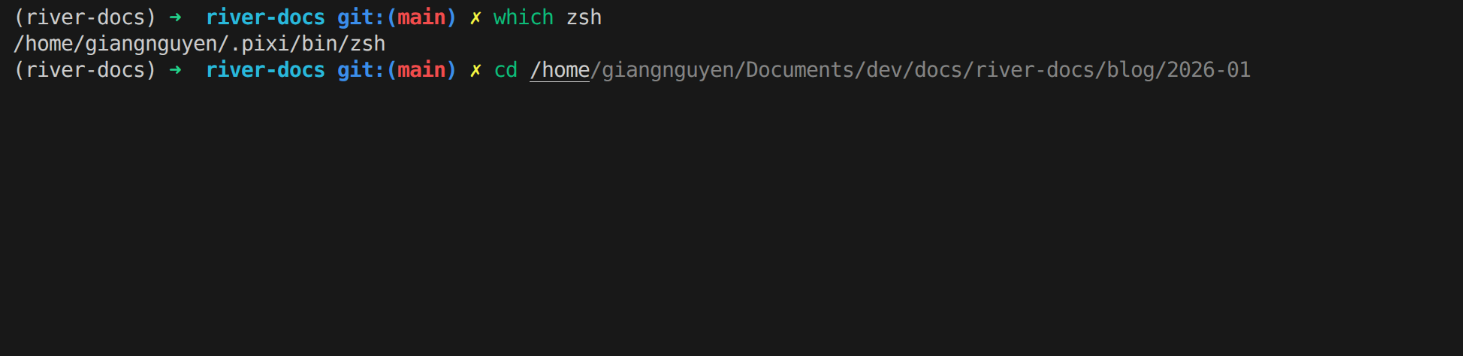
which zsh
# Output: /home/username/.pixi/bin/zsh

# Launch Zsh
zsh
That's all you need! Pixi automatically adds ~/.pixi/bin to your PATH in new terminals.
2.4. Update or Reinstall Zsh
Keep Zsh up-to-date with Pixi:
# Update Zsh to latest version
pixi global upgrade zsh

# Reinstall with specific version
pixi global install zsh==5.9 --channel conda-forge --force

# List all globally installed packages
pixi global list

# Check Zsh version
zsh --version
2.5. Why Pixi Global Install for Zsh?
✅ One-line installation - No projects, no setup
✅ No admin/sudo required - Install in user home
✅ Auto-available - Just reload terminal, no PATH export needed
✅ Reproducible - Same Zsh version across machines
✅ Isolated - Won't affect system Zsh
✅ HPC-friendly - Works on restricted clusters
✅ Easy updates - pixi global upgrade
✅ conda-forge channel - Best quality packages
3. Oh My Zsh: The Ultimate Configuration Framework
Now that you have Zsh installed via Pixi, let's add Oh My Zsh for easy management of plugins and themes.
3.1. What is Oh My Zsh?
Oh My Zsh is an open-source framework for managing Zsh configuration. It provides:
- 300+ plugins (Git, Docker, Python, Node, kubectl, etc.)
- 150+ themes (beautiful, customizable prompts)
- Auto-update system
- Easy configuration via
.zshrcfile
Why use Oh My Zsh?
- No need to write complex Zsh configs from scratch
- Community-maintained plugins and themes
- Works across Linux, macOS, and WSL
3.2. Install Oh My Zsh
# Install via curl
sh -c "$(curl -fsSL https://raw.githubusercontent.com/ohmyzsh/ohmyzsh/master/tools/install.sh)"

# Or via wget
sh -c "$(wget -O- https://raw.githubusercontent.com/ohmyzsh/ohmyzsh/master/tools/install.sh)"
What happens:
- Creates
~/.oh-my-zsh/directory - Backs up existing
~/.zshrcto~/.zshrc.pre-oh-my-zsh - Creates a new
~/.zshrcwith default Oh My Zsh configuration - Sets Zsh as default shell (if not already)
Verify installation:
# Open a new terminal (or run)
exec zsh

# You should see a colorful prompt with Oh My Zsh
3.3. Understanding the .zshrc File
The ~/.zshrc file is Zsh's configuration file (like .bashrc for Bash):
# Open in your favorite editor
nano ~/.zshrc
# or
vim ~/.zshrc
# or
code ~/.zshrc  # VS Code
Key sections in .zshrc:
# Path to Oh My Zsh installation
export ZSH="$HOME/.oh-my-zsh"

# Theme configuration
ZSH_THEME="robbyrussell"

# Plugins to load
plugins=(git)

# Load Oh My Zsh
source $ZSH/oh-my-zsh.sh

# Your custom aliases and functions go below
Apply changes:
# After editing .zshrc, reload configuration
source ~/.zshrc
4. Essential Plugins for Productivity
4.1. Core Built-in Plugins
Oh My Zsh includes essential plugins. Enable Git, Docker, and history plugins in ~/.zshrc:
plugins=(
  git              # Git aliases: gst, ga ., gcmsg, gp, gl, glol
  docker           # Docker aliases: dps, di, dstop
  history          # h, hsi "keyword"
)
Reload:
source ~/.zshrc
4.2. Essential External Plugins
Three essential external plugins dramatically improve your Zsh experience:
1. zsh-autosuggestions - History-based Autocomplete
Shows suggestions from history as you type (in gray). Press → to accept.
git clone https://github.com/zsh-users/zsh-autosuggestions ${ZSH_CUSTOM:-~/.oh-my-zsh/custom}/plugins/zsh-autosuggestions

# Add to ~/.zshrc plugins
plugins=(... zsh-autosuggestions)
source ~/.zshrc
2. zsh-syntax-highlighting - Live Command Validation
Highlights commands: green (valid), red (invalid) as you type.
git clone https://github.com/zsh-users/zsh-syntax-highlighting.git ${ZSH_CUSTOM:-~/.oh-my-zsh/custom}/plugins/zsh-syntax-highlighting

# Add to ~/.zshrc plugins (must be LAST)
plugins=(... zsh-syntax-highlighting)
source ~/.zshrc
3. fzf - Fuzzy Finder
Interactive command history and file search.
git clone --depth 1 https://github.com/junegunn/fzf.git ~/.fzf
~/.fzf/install

# Use:
Ctrl+R  # Search history
Ctrl+T  # Search files
Alt+C   # Change directory
4.3. Complete Plugin Setup
# Edit ~/.zshrc
plugins=(
  git
  docker
  history
  zsh-autosuggestions
  zsh-syntax-highlighting
)

source ~/.zshrc
5. Themes: Beautiful Prompts
5.1. Powerlevel10k (Recommended)
Powerlevel10k is the most popular Zsh theme with Git status, Python version, and interactive configuration.
# Install
git clone --depth=1 https://github.com/romkatv/powerlevel10k.git ${ZSH_CUSTOM:-$HOME/.oh-my-zsh/custom}/themes/powerlevel10k

# Set in ~/.zshrc
ZSH_THEME="powerlevel10k/powerlevel10k"

# Reload - configuration wizard will launch
source ~/.zshrc
Result - shows:
┌──(user@hostname)-[~/my-repo]-[main ✓]-[🐍 3.11.4]
└─$
main ✓- Git branch with status🐍 3.11.4- Active Python version- Git icons:
✓(clean),!(changes),+(staged)
Reconfigure anytime:
p10k configure
6. Developer Workflows and Customization
6.1. Git Integration
With Oh My Zsh's Git plugin and Powerlevel10k theme, you get:
Git aliases (from git plugin):
# Common commands
gst       # git status
ga .      # git add .
gcmsg     # git commit -m "message"
gp        # git push
gl        # git pull
gco       # git checkout
gcb       # git checkout -b (new branch)
glog      # git log --oneline --graph
Git status in prompt:
# Your prompt shows:
~/my-repo (main ✓)      # Clean repo
~/my-repo (main !)      # Uncommitted changes
~/my-repo (feat/new-feature +) # Staged changes
View all Git aliases:
alias | grep git
6.2. Docker Workflows
Enable docker and docker-compose plugins:
# ~/.zshrc
plugins=(... docker docker-compose)
Docker aliases:
# Common commands
dps       # docker ps
di        # docker images
dex       # docker exec -it
dstop     # docker stop
drm       # docker rm
drmf      # docker rm -f
Docker autocomplete:
docker <TAB>              # Shows all commands
docker run <TAB>          # Shows images
docker exec <TAB>         # Shows running containers
7. Sync Zsh Config: Desktop to HPC via GitHub
Use a dotfiles GitHub repository to keep your Zsh configuration synchronized across your local desktop and HPC cluster. Since HPC clusters typically have shared home directories, your config automatically works everywhere.
7.1. Create a Dotfiles Repository
On your desktop:
# Create dotfiles directory
mkdir -p ~/dotfiles
cd ~/dotfiles

# Initialize Git
git init

# Copy your Zsh config
cp ~/.zshrc zshrc

# Add and commit
git add zshrc
git commit -m "Initial commit: Zsh config"

# Create GitHub repo and push
git remote add origin https://github.com/yourusername/dotfiles.git
git branch -M main
git push -u origin main
7.2. Link Config on Desktop and HPC
On desktop or HPC (after cloning):
# Clone dotfiles
git clone https://github.com/yourusername/dotfiles.git ~/dotfiles

# Create symlink to Zsh config
rm ~/.zshrc  # Backup original if needed
ln -s ~/dotfiles/zshrc ~/.zshrc

# Verify
cat ~/.zshrc | head -5
7.3. HPC-Specific Workflow
Since most HPC clusters mount home directories as NFS, your ~/dotfiles repo is automatically available on compute nodes.
# On HPC login node
git clone https://github.com/yourusername/dotfiles.git ~/dotfiles
ln -s ~/dotfiles/zshrc ~/.zshrc

# Your config is now available on all compute nodes via shared home!
# Launch Zsh on any node:
zsh
Benefits for HPC:
- One config file for all login and compute nodes
- No need to configure Zsh on each machine
- Easy to update: just
git pullin~/dotfiles
7.4. Update Config Across All Machines
# Edit ~/.zshrc on desktop
nano ~/.zshrc

# Commit and push changes
cd ~/dotfiles
git add zshrc
git commit -m "Update: Add new alias"
git push

# On HPC, pull latest config
cd ~/dotfiles
git pull

# Changes take effect in new terminal session
exec zsh
8. Next Steps
Drop a comment below or reach out on GitHub! Share your .zshrc configurations and favorite plugins.
Related Posts:
- Pixi - New Conda-Based Era - Modern package management (no admin required!)
- Containers on HPC: Docker to Singularity - Reproducible environments on clusters
- Building a Reproducible GATK Variant Calling Bash Workflow with Pixi (Part 1) - Real-world Pixi + HPC example
- Building a Slurm HPC Cluster (Part 1) - HPC infrastructure guide