Building a Slurm HPC Cluster (Part 3) - Administration and Best Practices

In Part 1 and Part 2, we built a complete Slurm HPC cluster from a single node to a production-ready multi-node system. Now let's learn how to manage, maintain, and secure it effectively.
This final post covers daily administration tasks, troubleshooting, security hardening, and integration with data processing frameworks.
Series Overview
- Part 1: Introduction, Architecture, and Single Node Setup
- Part 2: Scaling to Production with Ansible
- Part 3 (This Post): Administration and Best Practices
Administration Overview
Managing a Slurm cluster involves several key areas:
- Cluster Management: Build, maintain, and update the cluster via Ansible
- User Management: Synchronize users across nodes with proper permissions
- Login Security: Implement SSH hardening with 2FA or key pairs
- Resource Management: Enforce limits and fair-share policies
- Monitoring: Track performance and resource utilization
- Troubleshooting: Diagnose and resolve issues
User and Resource Management
Adding Users and Groups
Slurm uses accounts (groups) to organize users and apply resource policies:
# Add a new account/group
sacctmgr add account research_team Description="Research Team"

# Add a user to an account
sacctmgr add user john account=research_team

# Add user with multiple accounts
sacctmgr add user alice account=research_team,dev_team DefaultAccount=research_team

# View accounts
sacctmgr show account

# View users
sacctmgr show user
Setting Resource Limits
Account-Level Limits
Control resources for entire groups:
# Limit CPU minutes (prevents monopolizing cluster)
sacctmgr modify account research_team set GrpCPUMins=100000

# Limit memory (in MB)
sacctmgr modify account research_team set GrpMem=500000

# Limit concurrent jobs
sacctmgr modify account research_team set GrpJobs=50

# Limit concurrent running jobs
sacctmgr modify account research_team set GrpJobsRun=20

# Limit number of nodes
sacctmgr modify account research_team set GrpNodes=10
User-Level Limits
Control individual user behavior:
# Limit jobs in queue
sacctmgr modify user john set MaxJobs=10

# Limit running jobs
sacctmgr modify user john set MaxJobsRun=5

# Limit wall time (in minutes)
sacctmgr modify user john set MaxWall=1440  # 24 hours

# Limit CPUs per job
sacctmgr modify user john set MaxCPUs=32

# View user limits
sacctmgr show user john withassoc format=user,account,maxjobs,maxsubmit,maxwall
Quality of Service (QoS)
QoS allows you to create service tiers with different priorities:
# Create QoS levels
sacctmgr add qos normal priority=100
sacctmgr add qos high priority=500 MaxWall=2-00:00:00 MaxJobs=5
sacctmgr add qos low priority=50

# Assign QoS to account
sacctmgr modify account research_team set qos=normal,high

# Users can specify QoS when submitting
sbatch --qos=high job_script.sh
Fair-Share Scheduling
Ensure equitable resource distribution:
# Set fair-share values (higher = more priority)
sacctmgr modify account research_team set fairshare=100
sacctmgr modify account dev_team set fairshare=50

# View fair-share tree
sshare -a

# View detailed fair-share info
sshare -A research_team --all
Node Management
Checking Node Status
# View all nodes
sinfo

# Detailed node information
sinfo -Nel

# Show node states
sinfo -N -o "%N %T %C %m %e %f"

# View specific node details
scontrol show node worker-01
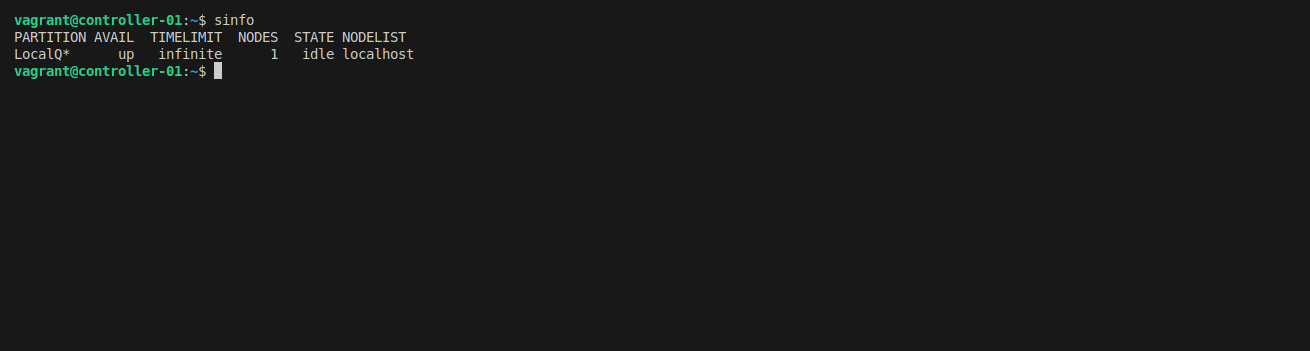
Node states you'll encounter:
- IDLE: Available for jobs
- ALLOCATED: Running jobs
- MIXED: Partially allocated
- DRAIN: Won't accept new jobs (draining)
- DRAINED: Fully drained
- DOWN: Not responding
Node Maintenance
Draining a Node
When you need to perform maintenance:
# Drain node (won't accept new jobs, allows running jobs to finish)
scontrol update NodeName=worker-01 State=drain Reason="Hardware upgrade"

# Force drain (terminate running jobs)
scontrol update NodeName=worker-01 State=drain Reason="Emergency maintenance"

# Check drain reason
sinfo -R
Resuming a Node
After maintenance:
# Resume node
scontrol update NodeName=worker-01 State=resume

# Verify it's back
sinfo -n worker-01
Forcing Node Down
If a node is misbehaving:
# Mark node as down
scontrol update NodeName=worker-01 State=down Reason="Hardware failure"

# When fixed, resume
scontrol update NodeName=worker-01 State=resume
Adding New Compute Nodes
- Update Ansible inventory (
inventories/hosts):
[slurm_worker]
worker-01 ansible_host=192.168.58.11
worker-02 ansible_host=192.168.58.12
worker-03 ansible_host=192.168.58.13  # NEW
- Run Ansible playbook:
ansible-playbook -i inventories/hosts river_cluster.yml --limit worker-03
-
Update
slurm.confon controller and all nodes (Ansible handles this) -
Restart slurmctld:
sudo systemctl restart slurmctld
- Verify the new node:
sinfo
scontrol show node worker-03
Monitoring and Troubleshooting
Checking Slurm Logs
Logs are essential for diagnosing issues:
# Controller logs
sudo tail -f /var/log/slurm/slurmctld.log

# Worker node logs (on compute nodes)
sudo tail -f /var/log/slurm/slurmd.log

# Database logs
sudo tail -f /var/log/slurm/slurmdbd.log

# Filter for errors
sudo grep "error" /var/log/slurm/*.log

# Filter for specific node
sudo grep "worker-01" /var/log/slurm/slurmctld.log

# Last 100 lines with context
sudo tail -100 /var/log/slurm/slurmctld.log
Common Issues and Solutions
Issue: Node Shows as DOWN
Diagnosis:
sinfo
# OUTPUT: worker-01    down   ...

scontrol show node worker-01
# Check "Reason" field
Solutions:
# 1. Check if slurmd is running
ssh worker-01 "sudo systemctl status slurmd"

# 2. Restart slurmd
ssh worker-01 "sudo systemctl restart slurmd"

# 3. Check network connectivity
ping worker-01

# 4. Check logs
ssh worker-01 "sudo tail -50 /var/log/slurm/slurmd.log"

# 5. Resume the node
scontrol update NodeName=worker-01 State=resume
Issue: Jobs Stuck in Pending
Diagnosis:
squeue
# See jobs in PD (pending) state

# Check why job is pending
squeue --start -j JOB_ID

# View detailed job info
scontrol show job JOB_ID
Common reasons:
Resources: Not enough resources availablePriority: Lower priority than other jobsDependency: Waiting for another job to completeQOSMaxJobsPerUser: User has too many jobs running
Solutions:
# 1. Check available resources
sinfo -o "%P %a %l %D %N %C"

# 2. View job requirements
scontrol show job JOB_ID | grep -E "Partition|NumNodes|MinMemory"

# 3. Cancel job if needed
scancel JOB_ID

# 4. Modify pending job
scontrol update JobId=JOB_ID NumNodes=1
Issue: Jobs Failing Immediately
Diagnosis:
# Check job status
sacct -j JOB_ID

# View job output files
cat slurm-JOB_ID.out
cat slurm-JOB_ID.err
Common causes:
- Script errors (check shebang line)
- Missing executables
- Resource limits exceeded
- Permission issues
Issue: Accounting Database Not Working
Diagnosis:
# Check slurmdbd status
sudo systemctl status slurmdbd

# Test database connection
sudo mysql -u slurm -p slurm_acct_db -e "SHOW TABLES;"

# Check slurmdbd logs
sudo tail -50 /var/log/slurm/slurmdbd.log
Solutions:
# 1. Restart slurmdbd
sudo systemctl restart slurmdbd

# 2. Verify database credentials in slurmdbd.conf
sudo cat /etc/slurm-llnl/slurmdbd.conf

# 3. Check database permissions
sudo mysql -e "SHOW GRANTS FOR 'slurm'@'localhost';"

# 4. Restart slurmctld to reconnect
sudo systemctl restart slurmctld
System Logs with rsyslog
Our Ansible setup configures centralized logging:
# On controller (rsyslog server)
sudo tail -f /var/log/syslog

# Filter by hostname
sudo grep "worker-01" /var/log/syslog

# Filter by service
sudo grep "slurmd" /var/log/syslog

# Check authentication logs
sudo tail -f /var/log/auth.log
Security Best Practices
SSH Hardening
Secure your login nodes! HPC clusters are attractive targets for attackers.
For detailed SSH security setup, see our SSH Remote Server documentation.
Key recommendations:
- Disable Password Authentication:
# /etc/ssh/sshd_config
PasswordAuthentication no
PubkeyAuthentication yes
-
Implement 2FA with Google Authenticator or similar
-
Use SSH Key Pairs:
# Generate key on your machine
ssh-keygen -t ed25519 -C "your_email@example.com"

# Copy to cluster
ssh-copy-id user@controller-node
- Limit SSH Access:
# /etc/ssh/sshd_config
AllowUsers alice bob charlie
AllowGroups cluster_users

# Or deny specific users
DenyUsers baduser
- Change Default Port (security through obscurity):
# /etc/ssh/sshd_config
Port 2222
Munge Authentication
Munge provides authentication between Slurm components:
# Verify munge is running
sudo systemctl status munge

# Test munge
munge -n | unmunge

# Generate new key (do this on controller, then distribute)
sudo /usr/sbin/create-munge-key

# Copy key to all nodes (Ansible does this automatically)
sudo scp /etc/munge/munge.key worker-01:/etc/munge/

# Restart munge on all nodes
sudo systemctl restart munge
Critical: The munge key must be identical on all nodes and have proper permissions (0400, owned by munge:munge).
Docker Security
Critical Security Issue: Users in the docker group can gain root privileges!
# DON'T DO THIS (unless they're admins)
sudo usermod -aG docker regular_user
Why? Because they can run:
docker run -v /:/hostfs --privileged -it ubuntu bash
# Now they have root access to the host filesystem!
Solutions:
- Use Docker Rootless Mode:
# Install rootless docker
curl -fsSL https://get.docker.com/rootless | sh
- Use Apptainer/Singularity (designed for HPC):
# Install Apptainer
sudo apt-get install apptainer

# Run containers without root
apptainer run docker://ubuntu:latest
- Restrict Docker Group: Only add administrators to docker group
Firewall Configuration
Restrict access to Slurm ports:
# Allow Slurm ports only from cluster network
sudo ufw allow from 192.168.58.0/24 to any port 6817  # slurmctld
sudo ufw allow from 192.168.58.0/24 to any port 6818  # slurmd
sudo ufw allow from 192.168.58.0/24 to any port 6819  # slurmdbd

# Allow SSH from anywhere
sudo ufw allow 22/tcp

# Enable firewall
sudo ufw enable
Shared Storage Best Practices
NFS Performance Tuning
Optimize NFS for your workload:
# /etc/fstab on compute nodes
controller-01:/home /home nfs4 rw,soft,rsize=262144,wsize=262144,timeo=14,intr 0 0
Parameters explained:
soft: Timeout after retry (vshardwhich waits forever)rsize/wsize: Read/write buffer size (larger = better performance)timeo: Timeout valueintr: Allow interrupts
Storage Layout
Recommended directory structure:
/home/          # User home directories (SSD/NVMe)
  ├─ alice/
  ├─ bob/
  └─ charlie/

/mnt/data/      # Large datasets (HDD or object storage)
  ├─ shared/    # Common datasets
  ├─ projects/  # Project-specific data
  └─ scratch/   # Temporary data (auto-cleanup)

/opt/           # Shared software/modules
  ├─ anaconda/
  ├─ modules/
  └─ apps/
Quotas
Prevent users from filling up shared storage:
# Set user quotas
sudo setquota -u alice 50G 60G 0 0 /home
sudo setquota -u alice 500G 550G 0 0 /mnt/data

# Check quotas
quota -u alice

# View all quotas
sudo repquota -a
Integration with Data Processing Frameworks
One of Slurm's greatest strengths is integration with modern computing frameworks:
Apache Spark
Submit Spark jobs to Slurm:
#!/bin/bash
#SBATCH --job-name=spark-job
#SBATCH --nodes=4
#SBATCH --ntasks-per-node=1
#SBATCH --cpus-per-task=8
#SBATCH --mem=32G

# Load Spark module
module load spark/3.5.0

# Run Spark application
spark-submit \
  --master yarn \
  --num-executors 4 \
  --executor-cores 8 \
  --executor-memory 28G \
  my_spark_app.py
Ray (Distributed ML)
#!/bin/bash
#SBATCH --job-name=ray-job
#SBATCH --nodes=2
#SBATCH --ntasks-per-node=1
#SBATCH --cpus-per-task=16
#SBATCH --gpus-per-node=2

# Start Ray cluster
ray start --head --port=6379
srun --nodes=1 --ntasks=1 ray start --address=$HEAD_NODE:6379

# Run Ray application
python ray_train.py
Dask
from dask_jobqueue import SLURMCluster
from dask.distributed import Client

cluster = SLURMCluster(
    cores=8,
    memory="16GB",
    processes=2,
    walltime="02:00:00",
    queue="compute"
)

cluster.scale(jobs=10)  # Request 10 jobs
client = Client(cluster)

# Your Dask code here
Nextflow (Bioinformatics)
// nextflow.config
process {
    executor = 'slurm'
    queue = 'compute'
    memory = '8 GB'
    time = '2h'
}
Run with:
nextflow run nf-core/rnaseq -profile slurm
Maintenance Tasks
Regular Updates
# Update cluster via Ansible
ansible-playbook -i inventories/hosts river_cluster.yml --tags update

# Update specific nodes
ansible-playbook -i inventories/hosts river_cluster.yml --limit worker-01,worker-02
Backup Critical Data
# Backup Slurm configuration
sudo cp /etc/slurm-llnl/slurm.conf /backup/slurm.conf.$(date +%Y%m%d)

# Backup accounting database
sudo mysqldump -u slurm -p slurm_acct_db > slurm_acct_backup_$(date +%Y%m%d).sql

# Backup user data (use rsync for efficiency)
sudo rsync -av /home/ /backup/home/
Monitoring Disk Space
# Check disk usage on all nodes
ansible all -i inventories/hosts -m shell -a "df -h"

# Check specific directory
ansible all -i inventories/hosts -m shell -a "du -sh /var/log/slurm"

# Find large files
find /home -type f -size +1G -exec ls -lh {} \;
Performance Optimization Tips
1. Tune Scheduler Parameters
# /etc/slurm-llnl/slurm.conf

# Increase scheduling frequency
SchedulerTimeSlice=30

# Prioritize recent submitters less
PriorityWeightAge=1000
PriorityWeightFairshare=10000

# Enable backfill scheduling with larger window
SchedulerType=sched/backfill
bf_window=1440  # 24 hours
2. Optimize Job Packing
# Use CR_CPU for CPU-bound jobs
SelectType=select/cons_tres
SelectTypeParameters=CR_CPU

# Or CR_Memory for memory-bound jobs
SelectTypeParameters=CR_Memory

# Or CR_Core for mixed workloads
SelectTypeParameters=CR_Core
3. Create Multiple Partitions
# /etc/slurm-llnl/slurm.conf

# Fast partition for short jobs
PartitionName=quick Nodes=worker-[01-02] Default=NO MaxTime=01:00:00 State=UP Priority=100

# Standard partition
PartitionName=standard Nodes=worker-[01-04] Default=YES MaxTime=2-00:00:00 State=UP Priority=50

# Long partition for extended jobs
PartitionName=long Nodes=worker-[03-04] Default=NO MaxTime=7-00:00:00 State=UP Priority=25

# GPU partition
PartitionName=gpu Nodes=gpu-[01-02] Default=NO MaxTime=1-00:00:00 State=UP Priority=75
4. Enable Job Arrays for Batch Processing
#!/bin/bash
#SBATCH --array=1-100%10  # 100 tasks, max 10 concurrent

# Process task based on array index
python process.py --input data_${SLURM_ARRAY_TASK_ID}.txt
Conclusion
Congratulations! You now have the knowledge to build, deploy, and manage a production Slurm HPC cluster. Let's recap the journey:
Part 1: Foundations
- Understanding Slurm architecture
- Single-node setup for learning
- Critical cgroup configuration
- Job accounting basics
Part 2: Production Deployment
- Ansible automation
- Multi-node cluster setup
- Monitoring with Grafana
- Slack alerting
Part 3: Administration (This Post)
- User and resource management
- Node maintenance and troubleshooting
- Security hardening
- Performance optimization
- Framework integration
Key Takeaways
- Start Simple, Scale Smart: Master single-node before going multi-node
- Automate Everything: Use Ansible for reproducible deployments
- Monitor Proactively: Set up alerting before problems occur
- Security First: SSH hardening, proper permissions, Docker caution
- Regular Maintenance: Backups, updates, and log monitoring
- Documentation: Document your cluster configuration and procedures
What's Next?
Consider these advanced topics:
- High Availability: Redundant controllers with failover
- LDAP Integration: Centralized authentication for large organizations
- GPU Scheduling: Optimize for machine learning workloads
- Cloud Bursting: Expand to cloud resources during peak demand
- Custom Plugins: Extend Slurm with custom scheduling policies
Resources
- Part 1: Single Node Setup
- Part 2: Production Deployment
- Documentation: Administration Guide
- GitHub: RiverXData Slurm Ansible
- Official Docs: SchedMD Slurm Documentation
Contact
Have questions or need help with your cluster? Reach out at: nttg8100@gmail.com
This concludes the RiverXData series on building Slurm HPC clusters. Thank you for following along! We hope this guide helps you build and manage effective HPC infrastructure.